
When you first start blogging — and even if you’ve been doing it for a while — it’s hard to find readers for your excellent, engaging content. There are a few key things you can do to help others see your blog posts, though.
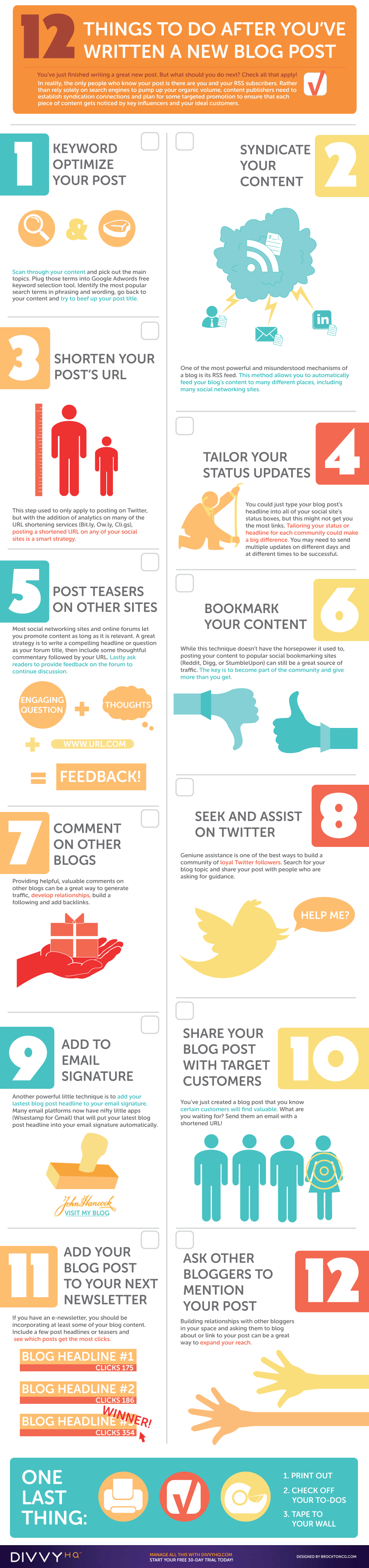
I found this infographic via my friend Stephanie Schwab of Crackerjack Marketing.
Looking to create a successful blog?
Follow these steps outlined in this article on creating a blog that people will actually read.
The author, Brody Dorland of DivvyHQ, provided a sharing option, so I thought I’d share it with you in the hopes you’d find it useful.
Another great article , Melanie. I completely agree with you. From my own experience, Social media is the (only) most important way to promote a website now. I understand website content is the key, however, without effective way to promote the website. The outcome might be way far from your expectation.
Thanks for sharing this wonderful article.
Adding latest post in my signature sounds a Great idea. Never tried that. Going to give it a try right away.
Hi Melanie,
Thanks for the amazing list of ways to promote blog posts. I will surely print this and stick on my wall.
God Bless,
Louie Sison
Thanks for your tips! Amaizing infographic!
It would be great to add list of url where we can submit our blog to. List of blog directory maybe.
Wonderful infographic! Pinned it on pinterest for others to see. Definitely helped me out and I’m sure it will help others as well. Thanks for sharing!
Really creative infographic which shows all the details for promoting your blogs as blogs are those which drives more traffic.
Hey Melanie,
First of all i want to say thanks. You have done a great job. I am new blogger searching for new different ideas. That Article will help me to improve all that things.
Thank you, Pramod! I’m glad you find the site useful. Thank you for stopping by.
Hi Melanie,
Its difficult to make our blog posts get noticed at the beginning. Thanks for sharing this infographic. It was really useful.
I never would have thought to add my latest post in my signature. Great idea.
I’m a bit skeptical about the URL shorteners. I always thought it was good to post the long link for better keyword searches and SEO. Even on Twitter I’ll post at least one full-length post title.
This is such nice and very effective ways to promote our blog post. Using social media site like facebook, stumbleupon, twitter is also another effective way to drive traffic to our post. Thank you so much for your wonderful inforgraphics
Well Pinterest can also be useful driving traffic back to your blog, although it uses some of your sites resources.
Great infographic! I have to admit that I have missed some of the good points on how to promote blogs.
Wasn’t this great? Thanks so much for the shoutout, Melanie!
Any time, Stephanie! You’re a great resource. 🙂
Awesome infograph Melanie!
Explains everything so nicely. I already love doing the #5 you mentioned here. And I do get awesome feedback too..
Will try other points too from now on.
Thanks for sharing Melanie 🙂
Mahaveer, #5 is *really* useful, especially if you have a newsletter or email RSS feed where you post part of the article, then send the reader to the site for more. Good luck! Thanks for stopping by.
Uber helpful steps Melanie!
Optimize to target your market. Follow up by promoting your blog post across multiple channels and do not forget to reach out to other bloggers by commenting on their posts.
Thanks for sharing 😉
Ryan
Ryan, thanks for stopping by and commenting! And thank you, too, for RT’g the article. You make an excellent point about knowing your target audience. If you try to be all things to all people, you’ll be disappointed and it won’t work in the long run. Knowing who you want to talk to and what they want is an important component of blogging success and sharing.
Nice post Melanie Nelson .Ya a good saying “real blogging starts after writing a blog post”.Thats why we have to do a lot of work to get noticed after a blog post. Thanks for sharing nice information in very attractive way.By the way the info grams are awesome.
Mahendra, YES! Many bloggers post but don’t tell people it’s out there! I’ve been guilty of it myself. These are good reminders. Thanks for stopping by!
Hi Melanie, Nice 12 tips to promote blog post. I am concentrating much harder on your 7th i.e. Comments. And right here doing that too. 🙂
Regards – Koj
Thanks for stopping by, Koj Tajo! Good luck!
This was useful! Thanks for sharing. I especially liked the reminder about bookmarks and adding it to my email signature.
Cecilia, you may also want to check out Wisestamp.com if you use Gmail. It’s a great way to set up an auto email signature that links to all your stuff.
This is really great advice and a very useful infogram. Thank you for providing this information.
Jessica, you’re welcome! Thank you for taking the time to comment!
This is such a great infographics. Explained almost everything.
I’m glad you liked it, Ansh! Definitely be sure to click the link to the original source. They have directions on how to print it out so you can easily reference it!
Comments are closed.